Multiple Lines of Text in InfoPath/SharePoint
Written on December 16, 2008 by Bryan
Scenario: You have built an InfoPath form that you publish to SharePoint to be filled out in a browser-enabled form using Forms Services. This form includes a simple text field that accepts multiple lines of text and does not explicitly set a maximum number of characters. When you publish this form to SharePoint and map the fields to Site Columns, this field is mapped to a “single line of text” field, and the default max character length is set to 255. Any characters entered into the field above this length are truncated when the data is entered into the column in SharePoint.
I came across this scenario recently and had to do some digging to find out what the issue was and what the best way to solve it was.
First, here’s a sample form that will produce this scenario:
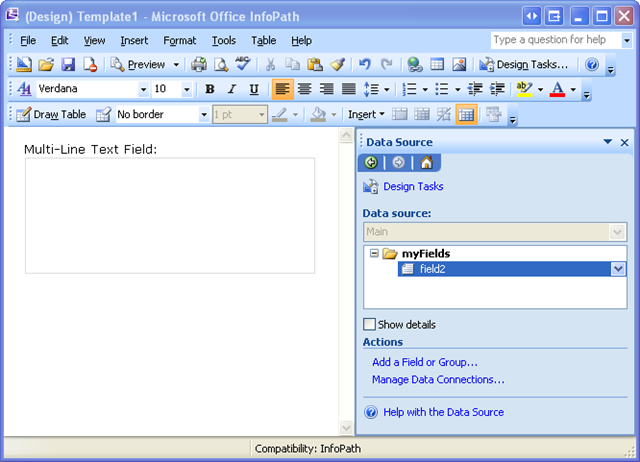
The properties in InfoPath for this text box are as follows:


As mentioned above, publishing this form to a SharePoint Form Library and entering more than 255 characters into this field will result in truncating the contents of the field when it is stored in the column in SharePoint. This is (probably) not the behavior intended. One way to handle this is to just limit the length of characters allowed in this field to 255. By the way, this doesn’t appear to be as easy as clicking the “Limit text box to:” checkbox because, as you can see above, it is grayed out when “Multi-line” is selected. (You’d have to do some Data Validation using the string-length function — ugly.) Anyway, if you did this, it would eliminate the possibility of truncating the contents, but of course, you may actually want your users to be able to enter more than 255 characters. So what’s the solution.
Well, apparently when publishing an InfoPath form to SharePoint, it automatically maps “string” fields to “single line of text” fields. In order to map to a “multiple lines of text” field, you have to use an “XHTML” field, which is a “Rich Text” field in InfoPath:


Publishing this form and mapping the Rich Text field to the column in SharePoint will result in setting the column to be “multiple lines of text” rather than “single line of text.” However, there is one small annoyance with this. Notice the message in the display properties above that says “Only full rich text without embedded images is supported in browser-enabled form templates.” Annoying. It means you get this stupid control on your form instead of regular plain text:

So how can have a regular text field and still map it to a “multiple lines of text” field in SharePoint. Here’s what I came up with.
- Create a regular text box (string) control in InfoPath.
- Create a rich text box (XHTML) field in InfoPath, but don’t display it on the form.
- Create a rule on the regular text box that sets the value of the rich text box to the current value of the regular text box.
- Map only the rich text box value to a column in SharePoint.
You should be able to handle steps one and two based on the screenshots above. Here are some quick screenshots to show you what I’m talking about for steps three and four.
On the regular text box (string) control, create a rule to set the value of the rich text box:

Finally, only map the rich text box value to a column in SharePoint (not the regular text box):

Notice the “plaintext” in parenthesis. The regular text box field won’t have that listed. I’m not even entirely sure what it means, but it seems to only show up for XHTML (rich text) fields instead of string fields.
This feels like a pretty roundabout way of getting what you want, but then again, the more I work with InfoPath and Forms Services, the more I realize that roundabout ways of getting what you want pretty much seem to be par for the course.

Simple work around for the above issue
http://skurocks.wordpress.com/2009/05/21/this-field-can-have-no-more-than-255-characters/